
Click here to upload an image
Tap to select an image file to customize its colors.
Nowadays, choosing the right color code for any website, poster, thumbnail, or design is crucial. Often, we need the exact hex color code for a specific color in an image, but we don't know how to extract it.
In this guide, we'll learn how to use this tool to copy the color code from any image or manually select a color.

Step 1: Upload Image
First, you need to open the tool. Once you open it, you'll see an Upload Image option.
Select the image from which you want to extract the color.
Click the "Upload" button.
Once the image is uploaded, it will appear on the screen. Now the image is ready for you to select any color.
This step is important because until the image is uploaded, the tool won't be able to recognize the colors within it.
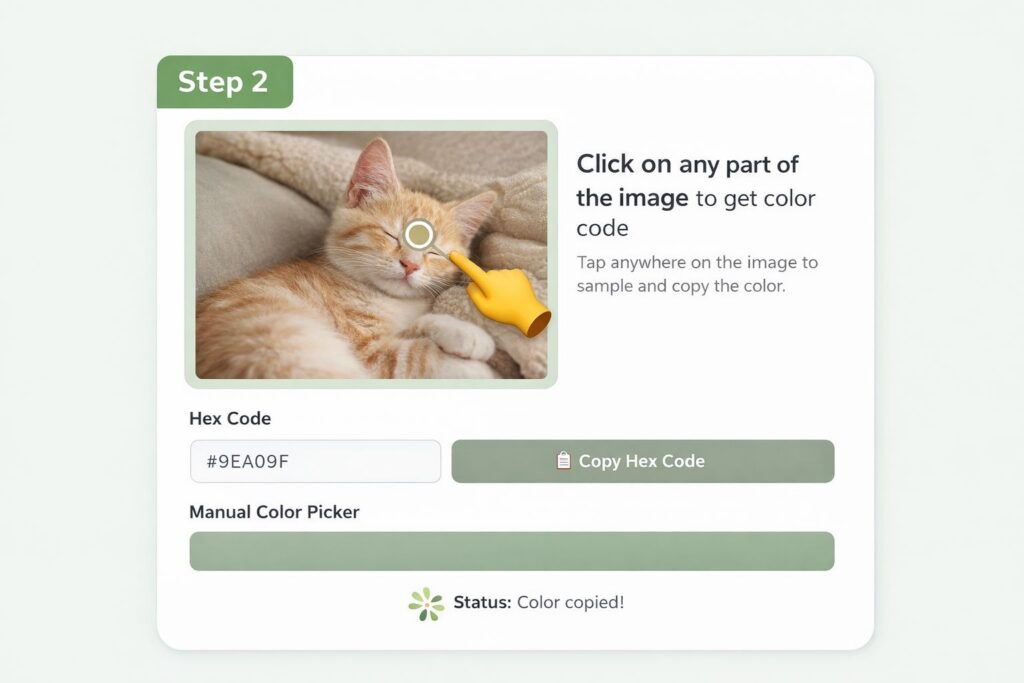
Step 2: Click on any part of the image
Your uploaded image will now be visible on the screen.
You simply need to click on the part of the image where you want the color.
As soon as you click, the tool will immediately identify the color at that location.
After clicking, you'll see a small color indicator or circle, indicating the area where you selected the color.
Also, below or to the side, you'll see the Hex Code for that color (e.g., #FF5733).
This code represents the exact color you selected.

Step 3: Copy the Color Code
Now that you've found your favorite color, the next step is to copy it.
You'll see a "Copy" button next to the Hex Code.
Clicking on it will copy your color code.
Some tools also display a message like "Copied Successfully," letting you know the code has been successfully copied.
Now you can use this code anywhere, such as:
In HTML or CSS
In Photoshop or Canva
In thumbnail design
In setting the website background color
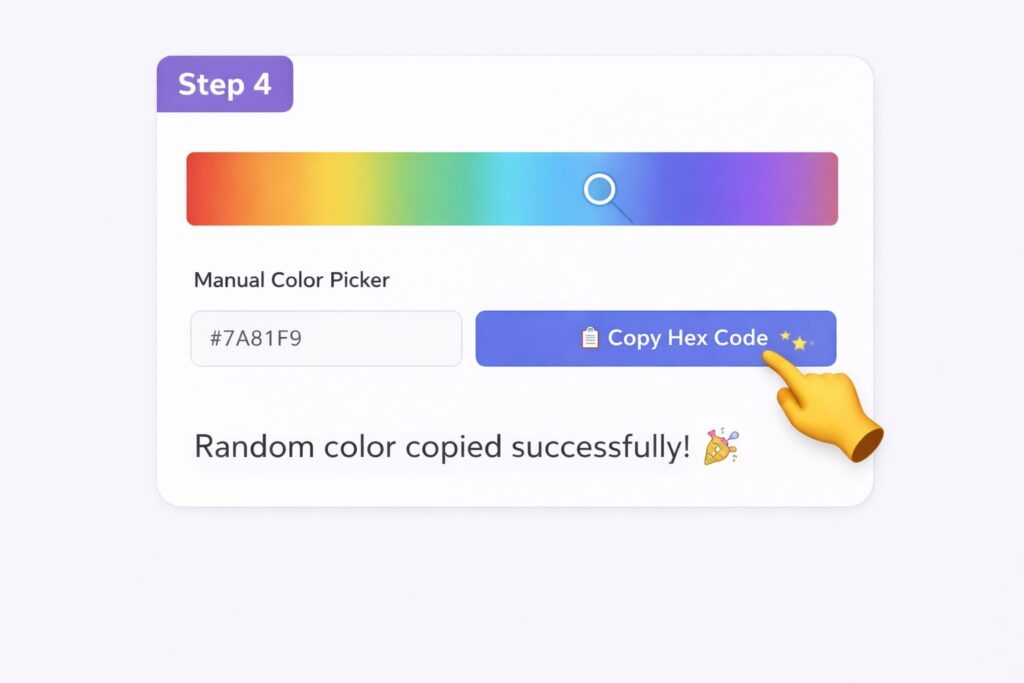
Step 4: Manually Choose a Color (Without an Image)
If you don't have an image and want a random color code, you can also choose the color manually.
You'll see a Color Picker or Gradient Bar in the tool.
You can choose your desired color by moving the slider.
As you move the slider, the color will change.
Once you select a color, its Hex code will automatically change.
This method is useful when:
You're creating a design
You need a unique color
You want to try different shades
You can also create a completely new and custom color this way.
Step 5: Generate a Random Color Code
Many tools have another great option—the Random Color Generator.
Click the “Random” or “Generate” button.
Each click will reveal a new color and its Hex Code.
This feature is very useful for those who:
Look for new color combinations in their designs
Looking for inspiration
Working creatively
Copy the color you like using the “Copy” button.
Step 6: Download or Save
If the tool has a Download or Save option, you can:
Download a list of selected colors
Or save the entire color palette
This feature is especially useful for web developers and designers, as they can use the same color repeatedly in their projects.
Key Benefits of This Tool
You can extract the exact color from any image.
Both Manual and Random options are available.
Color code copying with one click.
Useful for design, websites, and editing.
Extremely easy and user-friendly.
Conclusion
The Image Color Picker Tool is a very useful and easy tool that allows you to extract colors from any image or manually select a color. Whether you're designing a website, creating YouTube thumbnails, or graphic designing—the correct color code makes your design look professional.
By following all the steps above, you can easily:
Upload an image
Identify the color of any area
Copy its Hex Code